

A well-designed home workspace improves comfort, focus, and long-term productivity. Small changes to furniture, tech, lighting, and habits can reduce fatigue and make workdays feel easier.
This guide gives practical, actionable steps to create a more comfortable and supportive home office — with product categories and specific items to consider as you upgrade your setup.
Choose the Right Desk and Chair
Start with a stable desk at the right height and a supportive chair that encourages neutral posture. Look for adjustable-height desks or a chair with lumbar support, seat depth adjustment, and armrests you can position so shoulders stay relaxed. For desk and basic furniture options, check curated picks under Home Essentials to find functional surfaces and storage that fit small spaces.
Optimize Monitor and Laptop Setup
Raise your main screen so the top third of the display is at eye level; use a stand or external monitor to prevent neck strain. If you rely on a laptop, pair it with an external monitor or docking solution so the laptop lid can stay closed or at eye level. For a reliable portable workstation when you travel or move rooms often, consider a capable device like the HP Pavilion 15.6″ laptop, which pairs well with external accessories for ergonomic setups.
Keyboard, Mouse and Input Ergonomics
A compact, responsive keyboard and a precise mouse reduce wrist strain and improve speed. Choose a low-profile or split keyboard if you deal with wrist pain, and opt for a mouse that fits your hand size. A reliable, clutter-free option is the wireless keyboard and mouse combo for a clean desk and fewer cables.
Desk Accessories and Surface Comfort
Surface choice matters: a smooth, even mat helps mouse tracking and keeps wrists slightly elevated. A large, cushioned pad also protects the desk and contains small spills. Consider an extended pad for both keyboard and mouse to create one consistent surface; a practical option is the extended gaming mouse pad, sized for full desktop coverage and wrist support.
Lighting and Screen Comfort
Good lighting reduces eye strain and keeps you alert. Combine directional task lighting with soft ambient light to avoid screen glare. Position blinds or shades to prevent direct sunlight on displays. For monitors, webcams, and other peripherals that enhance your visual setup, browse options in Tech & Gadgets to find monitors, stands, and accessory lights that suit your workflow.
Sound, Calls and Focus
Clear audio and minimal background noise improve remote meetings and concentration. Use noise-cancelling headphones for focus or a good headset for calls. If you rely on external speakers or a home office TV as a second display during presentations, check sound and display gear in Audio & Television.
Organize for Movement and Breaks
Plan micro-breaks and movement into your day. Keep a water bottle and easy-to-grab healthy snacks nearby to avoid long sedentary stretches. Use timers or software to prompt short standing or stretching breaks every 30–60 minutes. For products and ideas that support overall recovery and short relaxation sessions between tasks, explore Wellness & Self-Care.
Comfort and Wellness at Your Desk
Small wellness tools—lumbar cushions, footrests, and calming scents—help you stay comfortable all day. For those who benefit from targeted relaxation, consider items designed to reduce tension and support sleep or stress management. Browse targeted aids in Stress Relief & Sleep Aids to find items like calming eye masks, neck supports, or gentle relaxation tools that can be used during breaks.
Quick Checklist
- Desk height: elbows at ~90º when typing.
- Monitor top at eye level; use a stand if needed.
- Keyboard and mouse fit your hand; keep wrists neutral.
- Large desk pad to stabilize mouse and support forearms.
- Task lighting + ambient light to reduce glare.
- Regular movement: stand, stretch, walk every 30–60 minutes.
- Hydration and small healthy snacks within reach.
- Noise management: headphones or soft background soundscape.
FAQ
How high should my monitor be?
Top third of the screen should align with your eye level while sitting upright; this reduces neck flexion. Use a monitor riser, stack of books, or an adjustable arm.
Is a standing desk worth it?
Yes for many people: alternating between sitting and standing reduces prolonged static posture. Start with short standing intervals and build up gradually.
Which mouse is best for wrist pain?
Ergonomic vertical mice or contoured designs that support a neutral wrist position tend to help. Also ensure your forearm and wrist are supported by the desk surface or pad.
How do I reduce screen glare?
Adjust monitor angle, use blinds or curtains to control sunlight, add an anti-glare screen protector, and position task lighting so it doesn’t reflect on the screen.
What’s a simple way to encourage movement?
Set a repeating timer or use a break reminder app. Pair breaks with a routine action—drink water, walk to a window, or do a short stretch sequence.
Conclusion
Improving your home workspace is a mix of ergonomics, focused tech choices, and small daily habits. Start with one change—adjust monitor height, add a supportive pad, or schedule regular breaks—and build from there. Practical upgrades and consistent movement deliver the biggest comfort and productivity gains.
Products Featured in This Article
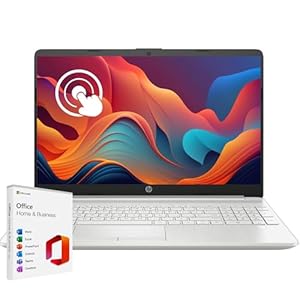
HP Latest Pavilion 15.6″ HD…
【Processor】 Powered by the 12th Gen Intel Core i3-1215U processor (up to 4.4 GHz, 10 MB…

Extended Gaming Mouse Pad, Large …
💻【ULTRA-SMOOTH SURFACE】: This large mouse pad adopts superfine Lycra cloth on cover, which will make your…
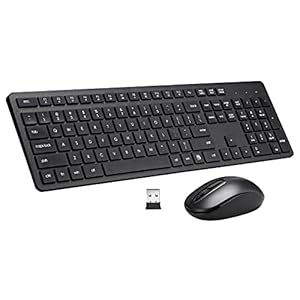
Wi-fi Keyboard and Mouse Combo, 2…
Full Sized Keyboard and Mouse Combo: The US QWERTY keyboard features a tilt angle for the…