
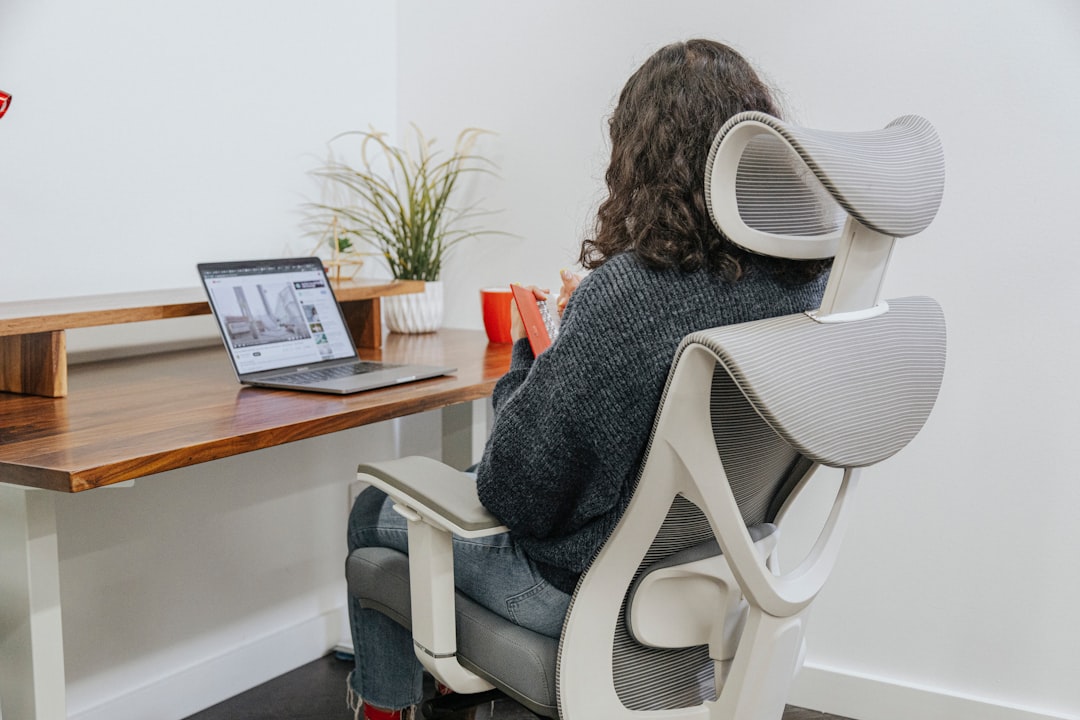
Working long hours at a desk or on a device can leave your hands and wrists sore, stiff, or noticeably tired. Small changes to your setup and routine can make a big difference in comfort, productivity, and long-term health.
This guide explains easy, practical steps you can use today to reduce hand and wrist strain—ergonomic adjustments, movement habits, simple stretches, and supportive tools you can buy to help prevent and relieve discomfort.
Set up an ergonomic workspace
An ergonomic setup begins with your workstation layout: desk height, chair support, and the distance to your keyboard and mouse. Your forearms should be roughly parallel to the floor, wrists in a neutral (straight) position, and shoulders relaxed. If you need desk or organizer items to create a better layout, look for solutions in the Home Essentials category to keep your work area tidy and properly arranged.
Optimize keyboard and mouse choices
Small hardware changes can remove awkward angles and repetitive stress. Choose a keyboard that keeps your wrists flat or tilted slightly negative, and use a mouse sized for your hand to avoid gripping tightly. A reliable, low-noise wireless option reduces cable drag and lets you position devices freely—consider a wireless keyboard and mouse combo if you want a simple upgrade that improves reach and posture.
Adding a roomy, non-slip desk pad gives your forearm a smooth surface, reduces friction when moving the mouse, and supports a more natural wrist position. An extended mouse pad like the one linked below can anchor your keyboard and mouse on the same level for consistency:
Extended gaming mouse pads are practical desk pads you can repurpose for ergonomic work setups.
Position your monitor and laptop correctly
Screen height matters because looking down or craning your neck changes shoulder and wrist alignment. Your top screen line should be at eye level. If you use a laptop as your main machine, raise it with a stand and pair it with an external keyboard and mouse so your wrists can stay neutral. If you’re considering a new laptop or a dual-screen setup that supports comfortable positioning, check specs like screen size and connectivity in products such as the HP Pavilion touchscreen laptop, which pairs well with external stands and docking options.
Build healthy habits and microbreaks
Frequent short breaks prevent buildup of tension. Use a 5–10 minute break every hour or microbreaks (30–60 seconds) every 20–30 minutes to shake out hands, flex wrists, and relax shoulders. Simple habit prompts—phone alarms or a break-timer app—help you remember movement. For relaxation techniques and aids that support recovery and better sleep after long workdays, explore options in Stress Relief & Sleep Aids.
Stretching and strengthening exercises
Daily stretches loosen tight muscles and tendons; strengthening prevents weakness that contributes to strain. Include wrist flexor and extensor stretches, finger spreads, and gentle tendon glides. Gradually add light resistance exercises—grip squeezes with a soft ball, or elastic band finger extensions—to build endurance. For at-home recovery tools, warm compresses, handheld massagers, or spa-style supplies can ease tightness—see related items under Massage & Spa.
Tools and accessories that help
Accessories can offload stress from the wrist: padded wrist rests, vertical or trackball mice, keyboard trays, and supportive braces for short-term relief. Topical hand creams or warming balms can help maintain skin flexibility and soothe post-work soreness—look in the Personal Care section for options that complement ergonomic changes.
When to modify tasks or consult professionals
If a task requires repetitive, forceful hand motions (heavy typing, constant pinching, or long mouse sessions), re-evaluate workflows: split tasks, rotate duties, or use automation where possible. If discomfort persists despite reasonable changes, consult a healthcare professional or occupational therapist for personalized evaluation—this article focuses on prevention and self-care, not diagnosis or guaranteed treatment.
Checklist: Quick actions you can take today
- Set keyboard and mouse at elbow height and wrists neutral.
- Use a wireless keyboard/mouse to improve positioning (wireless options).
- Place your screen so the top is at eye level.
- Take a 5–10 minute break each hour and short microbreaks every 20–30 minutes.
- Do wrist stretches and 2–3 light strengthening sets daily.
- Add a desk pad to reduce friction (extended desk pad).
- Try recovery aids like massage tools or sleep-support items (sleep & stress aids).
FAQ
Q: How often should I take breaks to prevent wrist strain?
A: Aim for short microbreaks every 20–30 minutes and a longer 5–10 minute break each hour to stretch and relax your hands and shoulders.
Q: Are wrist rests helpful or harmful?
A: Wrist rests can reduce pressure when pausing and provide support while at rest, but avoid resting your wrists on them while actively typing—keep wrists floating and use rests for breaks.
Q: Should I switch to an ergonomic or vertical mouse?
A: If you experience discomfort with a standard mouse, try an ergonomic or vertical mouse to reduce forearm pronation and gripping force. Test different shapes to find what fits your hand size.
Q: Can stretching alone fix persistent wrist pain?
A: Stretching helps relieve tension, but persistent pain may require ergonomic changes, task modification, and professional evaluation. Use stretches alongside other adjustments.
Q: What accessories give the best immediate relief?
A: A well-sized mouse, a low-profile keyboard, a desk pad to reduce friction, and brief braces for activity can provide quick relief while you address posture and habits.
Conclusion
Reducing hand and wrist strain is usually a combination of better positioning, healthier movement patterns, and a few targeted tools. Start with posture and breaks, add ergonomic devices that fit your work style, and introduce simple stretches. Small, consistent changes deliver the best results—take one step today and build from there.
Products Featured in This Article
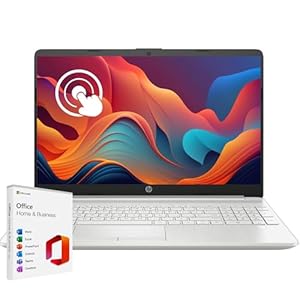
HP Latest Pavilion 15.6″ HD…
【Processor】 Powered by the 12th Gen Intel Core i3-1215U processor (up to 4.4 GHz, 10 MB…

Extended Gaming Mouse Pad, Large …
💻【ULTRA-SMOOTH SURFACE】: This large mouse pad adopts superfine Lycra cloth on cover, which will make your…
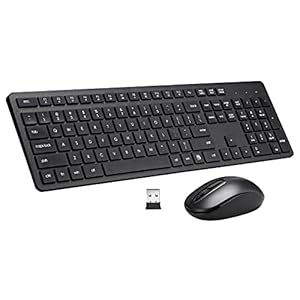
Wi-fi Keyboard and Mouse Combo, 2…
Full Sized Keyboard and Mouse Combo: The US QWERTY keyboard features a tilt angle for the…